
There is an expression that says, “there is more than one way to skin a cat” meaning there is more than one way to complete a task or achieve a goal or outcome. I’m not sure where the “skinning a cat” reference comes from and it’s kind of morbid so I’ll stay on topic and leave the research up to you, if you’re as curious as the proverbial cat and really want to know.
In any event, I’m writing this post more as a “Step-by-step / How To” article on tagging, tracking and reporting of PDF downloads within Sitecore (out of the box), as I quickly discovered that there are many articles which cover “event tracking” through Google Analytics (hence the skinning a cat analogy), but few on tracking PDF downloads directly within Sitecore.
I believe Sitecore’s tracking is much easier since it handles all of the tagging for you, through a simple point-and-click process. In the end, it’s a single selection that sets up the whole deal! How sweet is that?!
What you need
- Sitecore v7.1 or above (I’ll be using Sitecore.NET 8.0 rev. 150223)
- An uploaded/published PDF you want to track
- Sitecore Analytics turned on
How it’s done
- Go to the Media Library by clicking the button in the Sitecore Experience Manager
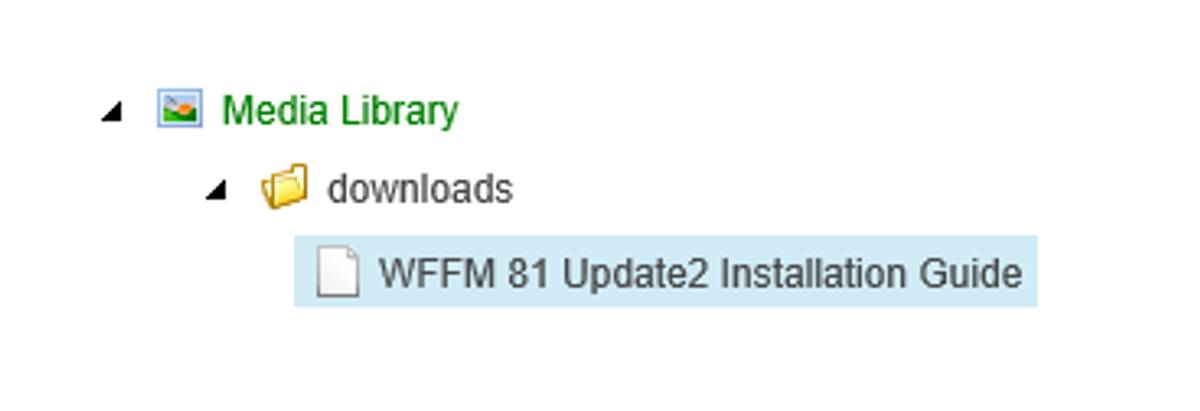
- From the left pane, select the PDF item you want to track
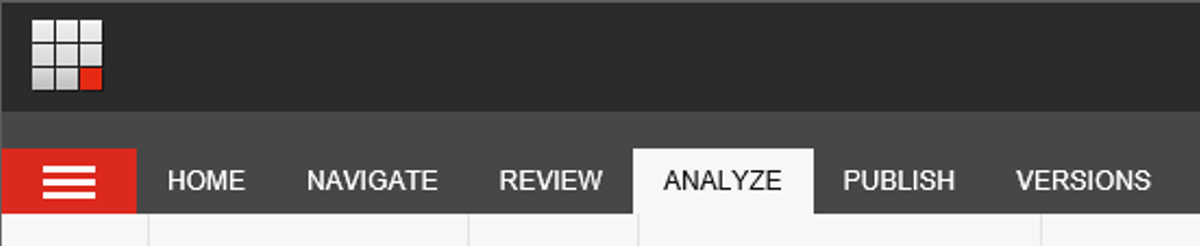
- Click on the Analyze menu option at the top of the screen
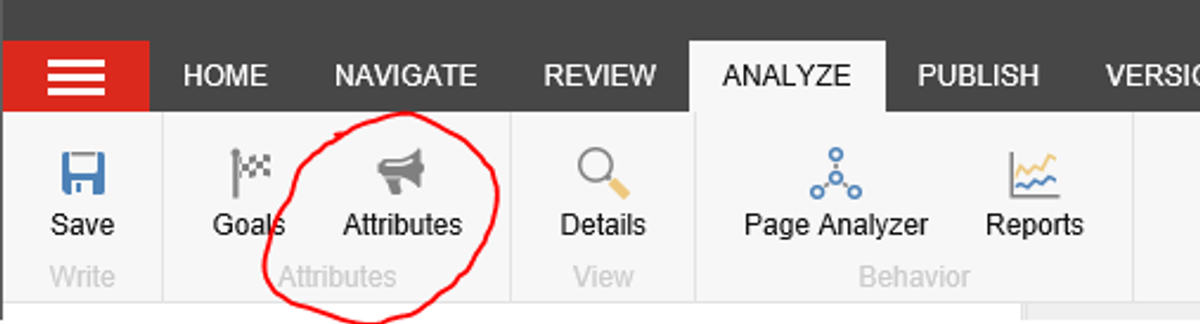
- Click on the Attributes button in the Analyze ribbon
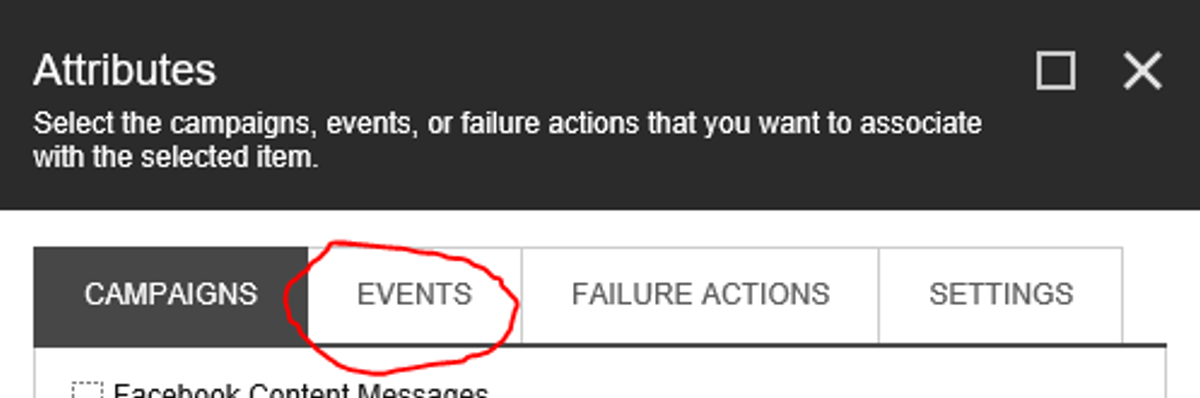
- From the Attributes dialogue box, choose the Events tab
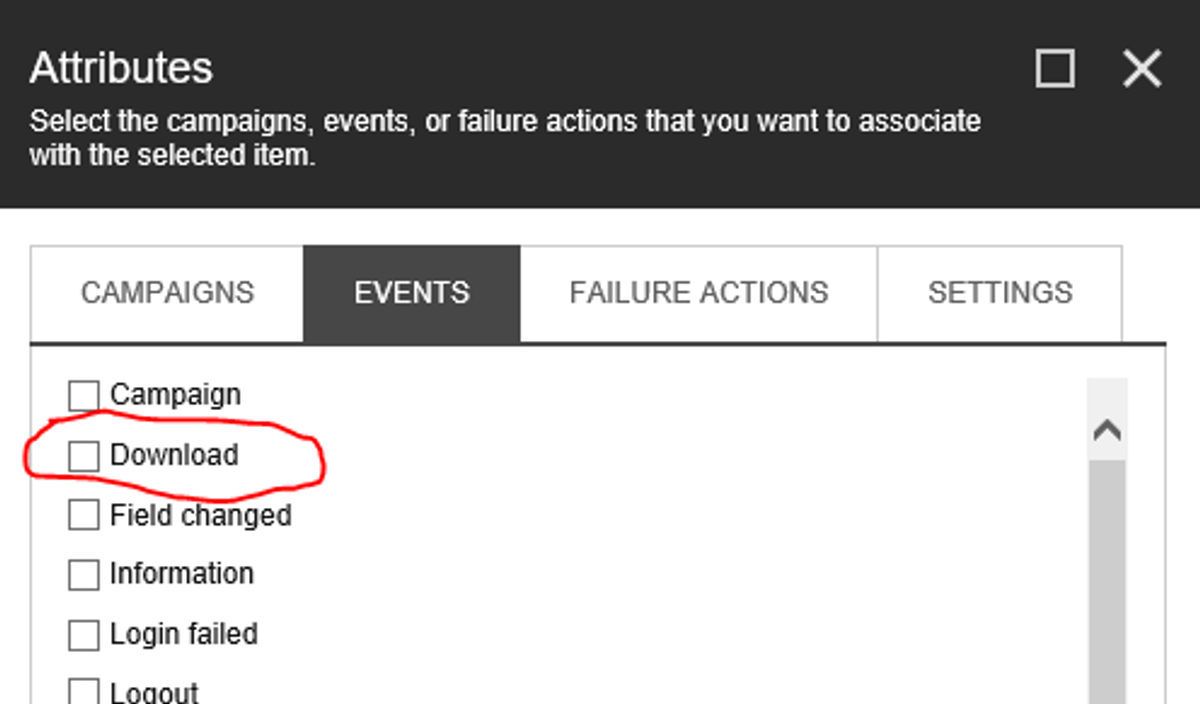
- Check the box next to the DOWNLOAD option from the Events section
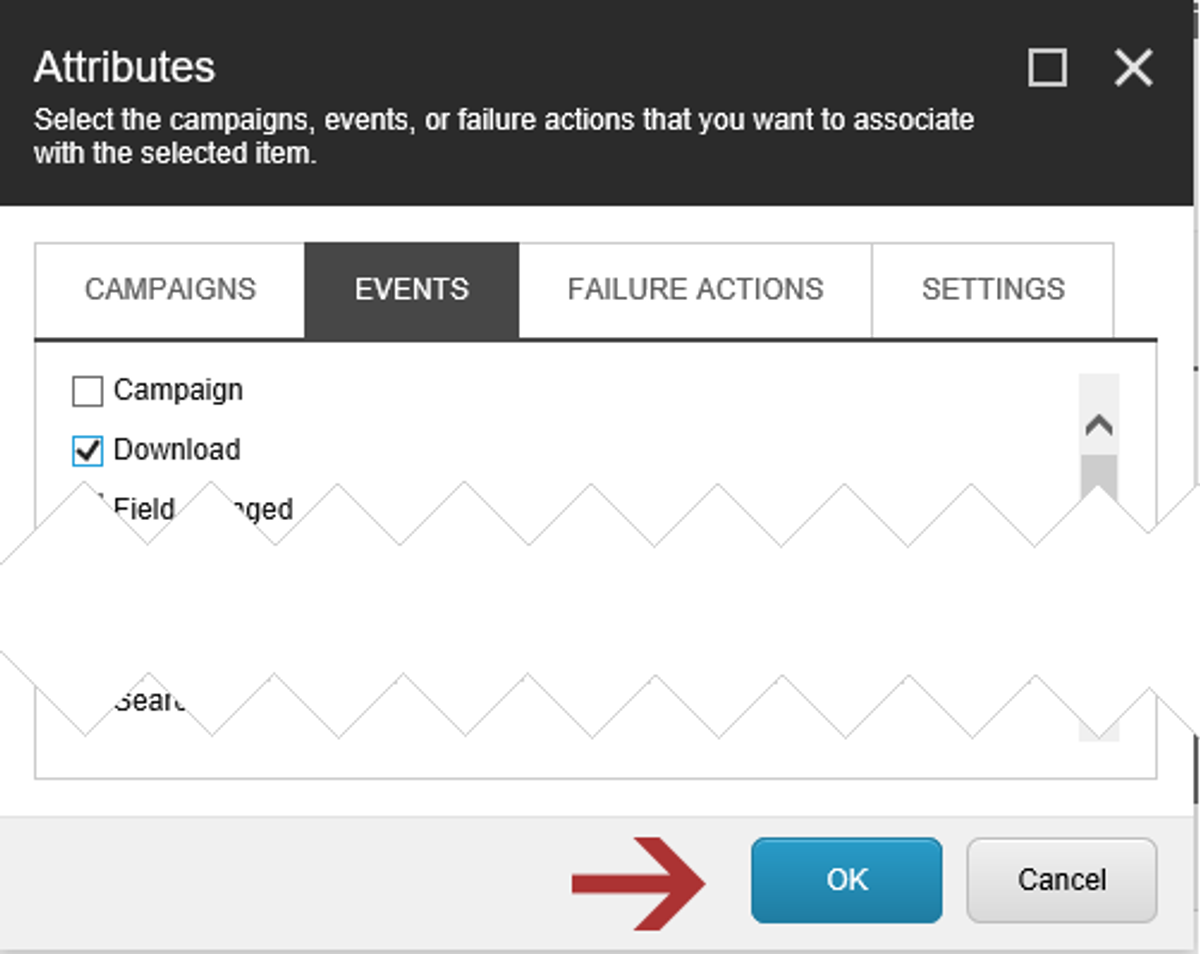
- Click the OK button and you’re done.
Of course, don’t forget to Publish.
Reporting: Where to see the results
Out of the box, the Sitecore Experience Manager also has a report that lists the downloads for you. “Awesome” you say? I know, right?!
Sitecore has improved its reporting significantly for marketers and business stakeholders alike.
Here are the steps:
- Click the Experience Analytics button from the Experience Manager dashboard
- Expand the Behaviour section found on the left
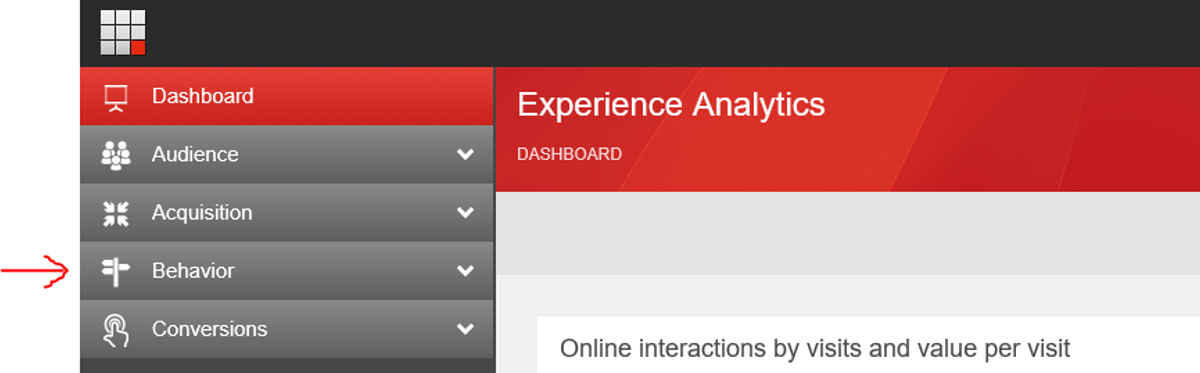
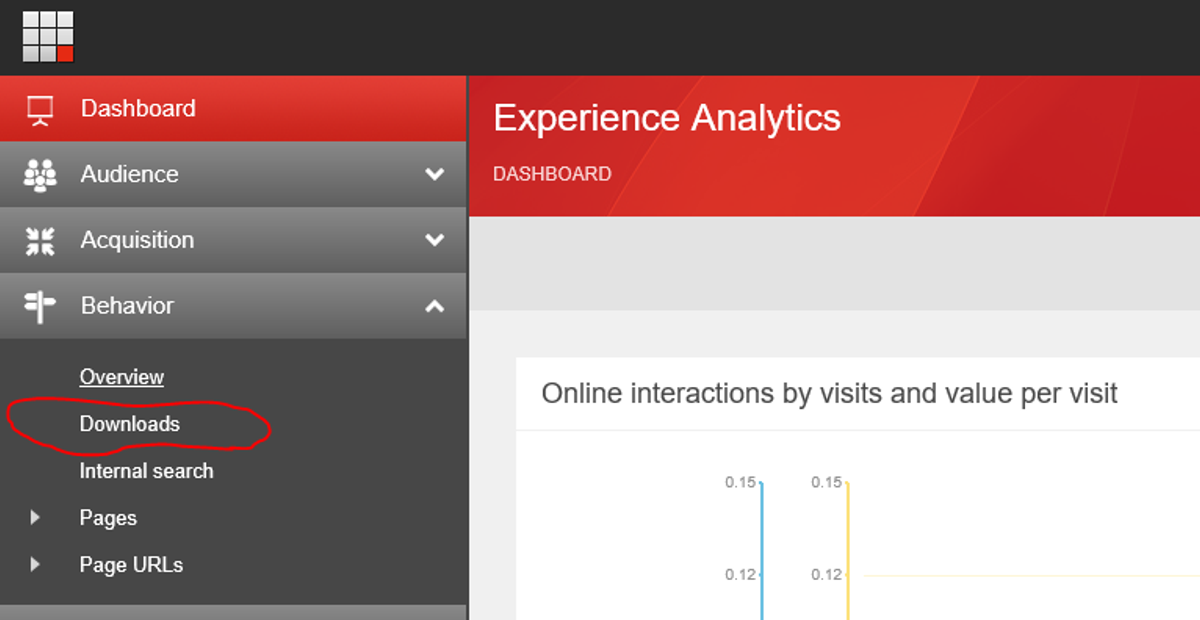
- Click on the Downloads option to see the report on the right
Using an earlier Sitecore version that doesn’t have the Experience Dashboard?
No worries. In my research adventures, I came across a great little add-on, in the Sitecore Marketplace, that will create\ a custom Downloads report. Happy tagging and tracking!